
3 min read | 20 Apr 2026

How to switch from Chaser to Trove

Stylized halftone image of a mountain peak with a beige sky
  • Published

  • 20 Apr 2026

  • Author

  • Anna Turner-Major

Migrating from Chaser to Trove is straightforward. This guide walks you through the process, including how to run both tools in parallel so nothing gets missed. Most businesses complete the switch in under an hour of active setup time, spread across a week or two of parallel running.

Divider

When to switch from Chaser for invoice reminders

The most common reason to switch from Chaser is increasing prices. At £199/month for the base plan and a hard jump to £599 once turnover crosses £4 million, Chaser no longer offers a price point for many SMBs.

If you have decided to switch to Trove, this guide takes you through the process. It usually takes around 30 minutes to get up and running.

Still weighing your options? See our comparison of the best Chaser alternatives in 2026.

xero growth app

Step-by-step guide for migrating to Trove (takes around 30 minutes)

Step 1: Sign up for your Trove free trial

Go to app.trove.works/signup and create your account. The 30-day trial gives you full access to the full product (no credit card required). During sign up, you will:

  • Connect your accounting software (Xero, Quickbooks, Stripe, NetSuite, Sage)
  • Connect the email account you want to use to send reminders

All of the key data from your accounting software will now be synced to Trove: customers, invoices, and contacts.

Step 2: Create your workflow

The next step is to transfer your Chaser schedule into Trove. You can do this from Workflows within Trove and then do one of the following:

(a) copy/paste templates from Chaser

(b) use Trove’s AI generation to write the email templates for you

Once your templates are in Trove, you can turn on AI features so that templates subtly change with each email and avoid sounding mechanical.

Step 3: Upgrade your workflow

Trove gives you more options for now to customise your workflows, adding more nuance and personalisation to how you contact your debtors.

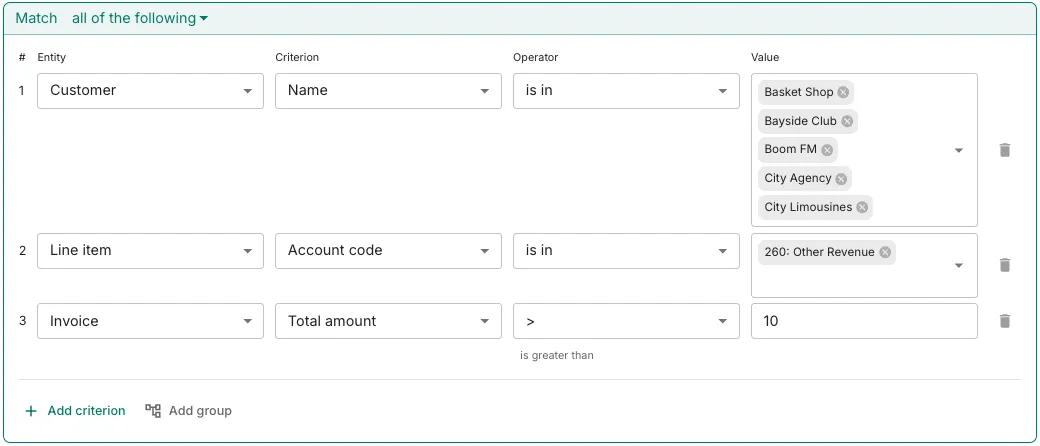
For example, in the below workflow, only certain customers with invoices greater than £10 and categorised as ‘other revenue’ would receive reminders:

Trove workflow filters

Step 4: Switch your workflow to ‘manual’ sending

Once you are happy with your workflow, the final step is to switch it to ‘manual’ sending. That means emails will be drafted but not sent (unless you approve them).

Running the workflow in ‘manual’ gives you a chance to check everything is working in Trove, e.g.

  • The right emails are being drafted at the right time
  • Any customers or invoices tagged as ‘Not sending’ in Chaser are also excluded in Trove
  • Your accounting software is syncing in real-time

Once you’re happy nothing is being missed, switch Trove to automatic sending and you’re live.

Step 5: Cancel Chaser

Finally, cancel Chaser to avoid being charged twice. If you have a 30-day notice period with Chaser, the Trove team can credit you for any overlapping days so you never pay for both at the same time.

Chaser vs Trove: what changes after you switch

Here’s a quick overview of the key changes when moving from Chaser to Trove.

Monthly cost

  • Chaser: £199 / month (starts at)
  • Trove: £50 / month (starts at)

Users

  • Chaser: Up to 4 (base plan)
  • Trove: Unlimited

Workflows

  • Chaser: Up to 4 (base plan)
  • Trove: Unlimited

Syncing (e.g. Xero)

  • Chaser: 1-way (Xero to Chaser)
  • Trove: 2-way (Xero to Trove, Trove to Xero)

Reporting

  • Chaser: Reports within Chaser
  • Trove: Emailed to team members

Template variation

  • Chaser: Fixed templates
  • Trove: AI rotates templates

Bounce monitoring

  • Chaser: No bounce monitoring
  • Trove: Included

Frequently asked questions

How long does it take to switch from Chaser to Trove?

The initial setup takes around 15-30 minutes. Most businesses run both tools in parallel for a few days before switching over.

Will I lose any data when I switch?

Any notes that are saved in Chaser only will not be migrated automatically. If you need help migrating these, let the Trove team know.

Can I migrate my Chaser templates to Trove?

Trove does not connect to Chaser but you can email any templates to hi@trove.works to automatically import them into Trove. Alternatively, use Trove’s AI email editor to generate new templates in your tone.

What happens to invoices currently being chased in Chaser?

When you connect Xero to Trove, it pulls in all currently outstanding invoices. If there are certain invoices that have been chased a few times by Chaser, you can start those invoices at e.g. Reminder 2 or Reminder 3 in Trove. As Trove starts in ‘manual’ mode, there’s no risk of customers being chased twice.

I have customers tagged as ‘not sending’ in Chaser. How do I manage this in Trove?

Trove’s equivalent is the ‘excluded’ tag. To speed things up, you can export a list of all ‘not sending’ customers or invoices in Chaser and the Trove team can import it so all the same customers and invoices are excluded in Trove.


Divider

Recent articles

Trove

Collect your treasure

© Trove Data Ltd, Company Number 16234512 registered in England & Wales, 2025

3 min read | 20 Apr 2026

How to switch from Chaser to Trove

Stylized halftone image of a mountain peak with a beige sky
  • Published

  • 20 Apr 2026

  • Author

  • Anna Turner-Major

Migrating from Chaser to Trove is straightforward. This guide walks you through the process, including how to run both tools in parallel so nothing gets missed. Most businesses complete the switch in under an hour of active setup time, spread across a week or two of parallel running.

Divider

When to switch from Chaser for invoice reminders

The most common reason to switch from Chaser is increasing prices. At £199/month for the base plan and a hard jump to £599 once turnover crosses £4 million, Chaser no longer offers a price point for many SMBs.

If you have decided to switch to Trove, this guide takes you through the process. It usually takes around 30 minutes to get up and running.

Still weighing your options? See our comparison of the best Chaser alternatives in 2026.

xero growth app

Step-by-step guide for migrating to Trove (takes around 30 minutes)

Step 1: Sign up for your Trove free trial

Go to app.trove.works/signup and create your account. The 30-day trial gives you full access to the full product (no credit card required). During sign up, you will:

  • Connect your accounting software (Xero, Quickbooks, Stripe, NetSuite, Sage)
  • Connect the email account you want to use to send reminders

All of the key data from your accounting software will now be synced to Trove: customers, invoices, and contacts.

Step 2: Create your workflow

The next step is to transfer your Chaser schedule into Trove. You can do this from Workflows within Trove and then do one of the following:

(a) copy/paste templates from Chaser

(b) use Trove’s AI generation to write the email templates for you

Once your templates are in Trove, you can turn on AI features so that templates subtly change with each email and avoid sounding mechanical.

Step 3: Upgrade your workflow

Trove gives you more options for now to customise your workflows, adding more nuance and personalisation to how you contact your debtors.

For example, in the below workflow, only certain customers with invoices greater than £10 and categorised as ‘other revenue’ would receive reminders:

Trove workflow filters

Step 4: Switch your workflow to ‘manual’ sending

Once you are happy with your workflow, the final step is to switch it to ‘manual’ sending. That means emails will be drafted but not sent (unless you approve them).

Running the workflow in ‘manual’ gives you a chance to check everything is working in Trove, e.g.

  • The right emails are being drafted at the right time
  • Any customers or invoices tagged as ‘Not sending’ in Chaser are also excluded in Trove
  • Your accounting software is syncing in real-time

Once you’re happy nothing is being missed, switch Trove to automatic sending and you’re live.

Step 5: Cancel Chaser

Finally, cancel Chaser to avoid being charged twice. If you have a 30-day notice period with Chaser, the Trove team can credit you for any overlapping days so you never pay for both at the same time.

Chaser vs Trove: what changes after you switch

Here’s a quick overview of the key changes when moving from Chaser to Trove.

Feature

Chaser

Trove

Monthly cost

From £199 / month

From £50 / month

Users

Up to 4 (base plan)

Unlimited

Workflows

Up to 4 (base plan)

Unlimited

Syncing (e.g. Xero)

1-way (Xero to Chaser)

2-way (Xero to Trove, Trove to Xero)

Reporting

Reports within Chaser

Emailed to team members

Template variation

Fixed templates

AI rotates templates

Bounce monitoring

No bounce monitoring

Included

Frequently asked questions

How long does it take to switch from Chaser to Trove?

The initial setup takes around 15-30 minutes. Most businesses run both tools in parallel for a few days before switching over.

Will I lose any data when I switch?

Any notes that are saved in Chaser only will not be migrated automatically. If you need help migrating these, let the Trove team know.

Can I migrate my Chaser templates to Trove?

Trove does not connect to Chaser but you can email any templates to hi@trove.works to automatically import them into Trove. Alternatively, use Trove’s AI email editor to generate new templates in your tone.

What happens to invoices currently being chased in Chaser?

When you connect Xero to Trove, it pulls in all currently outstanding invoices. If there are certain invoices that have been chased a few times by Chaser, you can start those invoices at e.g. Reminder 2 or Reminder 3 in Trove. As Trove starts in ‘manual’ mode, there’s no risk of customers being chased twice.

I have customers tagged as ‘not sending’ in Chaser. How do I manage this in Trove?

Trove’s equivalent is the ‘excluded’ tag. To speed things up, you can export a list of all ‘not sending’ customers or invoices in Chaser and the Trove team can import it so all the same customers and invoices are excluded in Trove.

Divider

Customer not paying?

Take the right action every time with Trove.

credit card icon

Propose payment plan

sparkles

Draft reply

money icon

Apply late payment fee

calendar icon

Schedule monthly statement

... and more

Book a demo

Divider

Recent articles

Trove

Collect your treasure

© Trove Data Ltd, Company Number 16234512 registered in England & Wales, 2025

3 min read | 20 Apr 2026

How to switch from Chaser to Trove

Stylized halftone image of a mountain peak with a beige sky
  • Published

  • 20 Apr 2026

Author Image
  • Author

  • Anna Turner-Major, CEO & Co-founder

Migrating from Chaser to Trove is straightforward. This guide walks you through the process, including how to run both tools in parallel so nothing gets missed. Most businesses complete the switch in under an hour of active setup time, spread across a week or two of parallel running.

Divider

When to switch from Chaser for invoice reminders

The most common reason to switch from Chaser is increasing prices. At £199/month for the base plan and a hard jump to £599 once turnover crosses £4 million, Chaser no longer offers a price point for many SMBs.

If you have decided to switch to Trove, this guide takes you through the process. It usually takes around 30 minutes to get up and running.

Still weighing your options? See our comparison of the best Chaser alternatives in 2026.

xero growth app

Step-by-step guide for migrating to Trove (takes around 30 minutes)

Step 1: Sign up for your Trove free trial

Go to app.trove.works/signup and create your account. The 30-day trial gives you full access to the full product (no credit card required). During sign up, you will:

  • Connect your accounting software (Xero, Quickbooks, Stripe, NetSuite, Sage)
  • Connect the email account you want to use to send reminders

All of the key data from your accounting software will now be synced to Trove: customers, invoices, and contacts.

Step 2: Create your workflow

The next step is to transfer your Chaser schedule into Trove. You can do this from Workflows within Trove and then do one of the following:

(a) copy/paste templates from Chaser

(b) use Trove’s AI generation to write the email templates for you

Once your templates are in Trove, you can turn on AI features so that templates subtly change with each email and avoid sounding mechanical.

Step 3: Upgrade your workflow

Trove gives you more options for how to customise your workflows, adding more nuance and personalisation to your customer communication.

For example, in the workflow below, only named customers with invoices greater than £10 and sales categorised as ‘other revenue’ would receive reminders. That means you can make templates much more specific to different use cases.

Trove workflow filters

Step 4: Switch your workflow to ‘manual’ sending

Once you are happy with your workflow, the final step is to switch it to ‘manual’ sending. That means emails will be drafted but not sent (unless you approve them).

Running the workflow in ‘manual’ gives you a chance to check everything is working in Trove, e.g.

  • The right emails are being drafted at the right time
  • Any customers or invoices tagged as ‘Not sending’ in Chaser are also excluded in Trove
  • Your accounting software is syncing in real-time

Once you’re happy nothing is being missed, switch Trove to automatic sending and you’re live.

Step 5: Cancel Chaser

Finally, cancel Chaser to avoid being charged twice. If you have a 30-day notice period with Chaser, the Trove team can credit you for any overlapping days so you never pay for both at the same time.

Chaser vs Trove: what changes after you switch

Here’s a quick overview of the key changes when moving from Chaser to Trove.

Feature

Chaser

Trove

Monthly cost

From £199 / month

From £50 / month

Users

Up to 4 (base plan)

Unlimited

Workflows

Up to 4 (base plan)

Unlimited

Syncing (e.g. Xero)

1-way (Xero to Chaser)

2-way (Xero to Trove, Trove to Xero)

Reporting

Reports within Chaser

Emailed to team members

Template variation

Fixed templates

AI rotates templates

Bounce monitoring

No bounce monitoring

Included

Frequently asked questions

How long does it take to switch from Chaser to Trove?

The initial setup takes around 15-30 minutes. Most businesses run both tools in parallel for a few days before switching over.

Will I lose any data when I switch?

Any notes that are saved in Chaser only will not be migrated automatically. If you need help migrating these, let the Trove team know.

Can I migrate my Chaser templates to Trove?

Trove does not connect to Chaser but you can email any templates to hi@trove.works to automatically import them into Trove. Alternatively, use Trove’s AI email editor to generate new templates in your tone.

What happens to invoices currently being chased in Chaser?

When you connect Xero to Trove, it pulls in all currently outstanding invoices. If there are certain invoices that have been chased a few times by Chaser, you can start those invoices at e.g. Reminder 2 or Reminder 3 in Trove. As Trove starts in ‘manual’ mode, there’s no risk of customers being chased twice.

I have customers tagged as ‘not sending’ in Chaser. How do I manage this in Trove?

Trove’s equivalent is the ‘excluded’ tag. To speed things up, you can export a list of all ‘not sending’ customers or invoices in Chaser and the Trove team can import it so all the same customers and invoices are excluded in Trove.

Customer not paying?

Take the right action every time with Trove.

Propose payment plan

Draft reply

Apply late payment fee

Schedule monthly statement

... and more

Book a demo

divider

Recent articles