Xero invoice reminders are free, built into Xero and take about 10 minutes to set up. You get up to five automatic emails per invoice, on one schedule that applies to every customer.
That’s enough for a lot of small businesses. It stops being enough when you need to chase someone today, when reminders go to the wrong person, or when a customer still owes you after the fifth email.
Here’s how to turn Xero invoice reminders on, how to turn them off for one customer or invoice, what to check when they don’t send, and the six limits worth knowing before you rely on them.
Summary
- The basics: Xero’s invoice reminders take about 10 minutes to set up, and send up to 5 automated emails per invoice on one schedule that applies to every customer.
- Turning them on or off: toggle them globally in Sales > Invoices, or turn them off for a specific customer or a single invoice.
- Where they work well: Xero invoice reminders are fine for straightforward setups with a modest number of invoices, usually fewer than 10 overdues.
- The limitations: there are some key limitations we cover, from one set of recipients per customer to no visibility on whether a reminder even landed, each with a basic workaround and a more thorough fix.
How Xero invoice reminders work
Xero’s invoice reminder system sends automated emails to customers when invoices are approaching their due date or become overdue.
Key overview:
- You can configure up to 5 reminder emails
- You can set up one schedule that applies to all customers
- The system does a daily check and sends reminders between 4am and 8am
- Reminders are sent from Xero’s email domain (
@xero.com)
How to turn on Xero invoice reminders
- Log into Xero and go to Sales > Invoices
- In the top right of the page, you’ll see a button labelled Invoice reminders: Off - click it
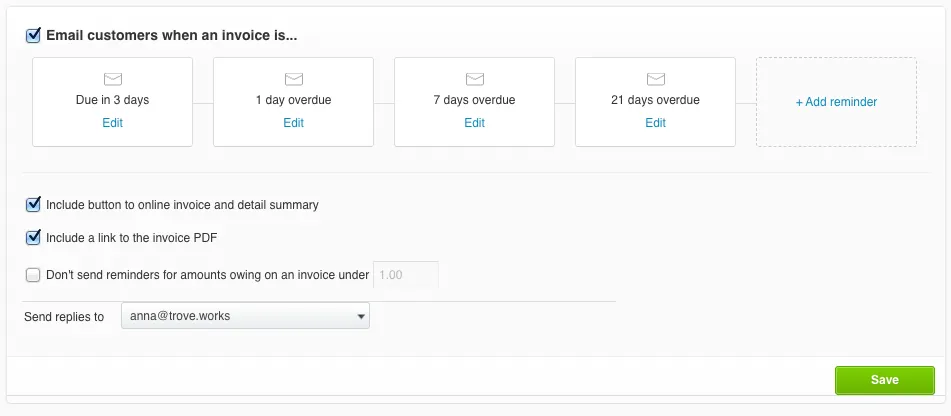
- Tick the box that says Email customers when an invoice is…
- Configure your reminder schedule (see below) and hit save
The first batch of reminders will go out the following morning.
Who can turn them on
You need Standard or Adviser user access in Xero to change invoice reminder settings. If you can’t see the Invoice reminders button, ask whoever manages users in your Xero organisation to check your role.
Replies to reminders go to the person who turned them on, unless you change it. Here’s how to change who Xero invoice reminder replies go to.
Configuring your reminder schedule
You can configure up to five reminders. For each reminder, you choose:
- When it is sent - X days before or after the due date
- The copy - Xero provides a default template which you can edit
- A minimum threshold - only send for invoices above a certain value (£0 means all)
- Attachments - a PDF copy or an online link to the invoice
A reminder schedule that works
You don’t need all five reminders. Trove’s data shows that of the invoices that get paid, half are paid after the first reminder and about 75% by the second, so the first two emails do most of the work.
This is the schedule we’d start with:
| When | Tone | What it’s for |
|---|---|---|
| 3 days before due | Friendly heads-up | Catches invoices stuck in the wrong inbox before they’re late |
| 7 days overdue | Polite and direct | Most late payers pay here |
| 14 days overdue | Firmer, asks for a payment date | Gets a commitment you can track. Trove’s AI logs the date when the customer replies |
| 30 days overdue | Final, names the next step | Last automatic email before you pick up the phone |
That uses four of your five slots. If a customer still hasn’t paid at 30 days, more emails rarely help. Call them, or send a letter before action for the unpaid invoice. If the first reminder is the one you’re unsure about, we’ve written about sending a reminder before the due date in Xero.
Types of reminder you can send
The overdue reminder email is only one of the ways to remind a customer about an unpaid invoice. Here are the other reminder types:
✅ Included in Xero reminders
- Reminder before the due date: This can prevent a good number of invoices from going overdue at all. Xero supports it natively by setting a stage to send a number of days before the due date. There’s more on getting the timing and wording right in sending a reminder before the due date in Xero.
❌ Not included in Xero reminders
- Regular statement: This works well as a consistent reminder for all customers of their account with you. Xero can produce statements but can’t schedule them, which is a gap in its own right: here’s how to send statements automatically from Xero.
- SMS reminders: In some industries, these get read more reliably than email, but they’re intrusive if you misjudge the relationship. Whether it’s a good idea to send Xero invoice reminders by SMS covers when it works.
How to turn off Xero invoice reminders
You can switch reminders off at three levels, depending on how much you want to stop.
| To stop reminders for | Where to go in Xero | What happens |
|---|---|---|
| Every customer | Sales > Invoices > Invoice reminders: On, then untick “Email customers when an invoice is…” | No more automatic reminders until you turn them back on |
| One customer | Contacts > Customers > open the customer > turn invoice reminders off | That customer’s invoices drop out of the schedule. Everyone else carries on |
| One invoice | Open the invoice in Awaiting Payment > More > Turn off invoice reminders | Only that invoice stops. Useful while you’re sorting a dispute or a payment plan |
Turning off reminders globally
To disable invoice reminders for all customers:
- Go to Sales > Invoices
- Click the Invoice reminders: On button
- Uncheck the box that says Email customers when an invoice is… and hit save
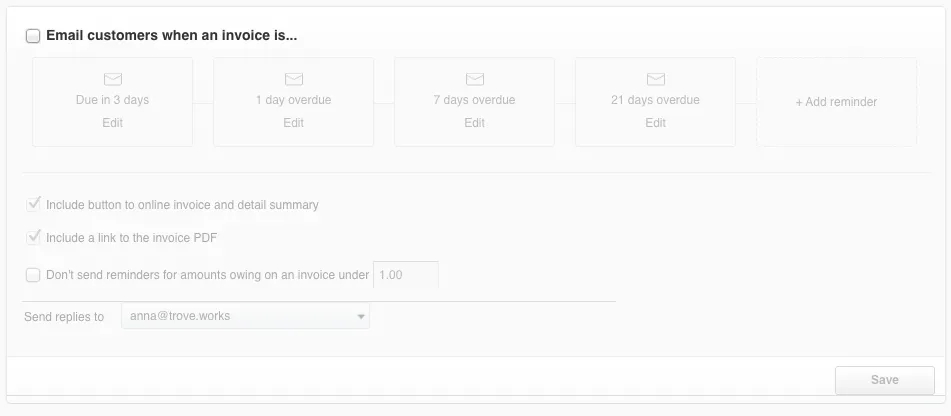
This stops all automated reminders immediately. Invoices that have already had reminders sent will not receive further ones.
Turning off reminders for a specific customer
If you want to keep reminders running for most customers but exclude certain contacts, high-value clients you’d rather chase personally for example, you can disable reminders at the contact level:
- Go to Contacts > Customers
- Open the relevant customer record
- Under the contact details, find the Invoice reminders option and turn it off for that contact
Any invoices raised against that contact will be excluded from the global reminder schedule.
Turning off reminders for a specific invoice
You can also disable reminders on individual invoices. Open the invoice, find the reminders setting, and turn it off. Useful for one-off situations where you know you’ll be managing the follow-up manually.
Can you send a Xero invoice reminder manually?
No. Xero has no button to send a reminder on demand. Reminders only go out on your schedule, in Xero’s daily run. Xero users have asked for a manual option since July 2022, and the request on Xero’s product ideas forum is still under review.
Here’s how to send a Xero invoice reminder manually instead.
Xero invoice reminder limitations and workarounds
Xero’s reminder system works well for straightforward setups but can be surprisingly limited if you have a more complex customer base. Here are the main limitations and how to work around them, either within Xero or with dedicated credit control software.
1. Only one set of recipients per Xero customer
This is a common complaint and affects any business that wants to send different invoices to different contacts at the same company.
Xero always sends invoice reminders to whoever is listed in the customer record. If you have ten contacts under one customer and only one of them was sent the invoice, all ten will still get the reminder. This causes friction for bigger or more complex customers.
Workaround inside Xero: audit your contact records so only the right contact(s) have “Include in emails” ticked and update the record before each send. Does it work? Yes. Is it slow and annoying? Also yes.
Where Xero is limited: if you want to automate this work, you will need another tool. Here are some typical situations that need it:
- I want to send reminders only to the person I invoiced - Read more.
- I want to send reminders to a different email than the original invoice - Read more.
- I need to chase invoices at different departments in the same company - Read more.
2. Xero invoice reminders sometimes don’t get delivered
Every Xero reminder is sent from @xero.com, not your business address. That creates three problems:
- It looks impersonal, which makes customers less likely to act.
- Their replies might get lost.
- Spam filters treat it with suspicion, especially at larger companies with aggressive email security.
Workaround inside Xero: you can set a reply-to address so responses come back to you, which helps with replies and making the reminders feel more personal. Here’s how to change who replies go to in Xero.
What Xero can’t do: send from your own domain, which is what usually gets emails past spam filters.. Here’s more on why Xero reminders go to spam and how to fix it.
3. One set of reminders for all customers
Xero runs a single reminder sequence. Every customer with an overdue invoice gets the same emails, on the same schedule, in the same tone.
That’s fine when your customer base is uniform, but is limiting if certain customers need a different approach.
Workaround inside Xero: this is once again manual. You can turn reminders off for the customers who don’t fit the standard sequence and chase them manually.
What Xero can’t do: if you want to automatically send different emails to certain customers, you will again need another tool. Here’s an overview of situations where you may want to send different reminders to different customers, including some of these typical scenarios:
- I want to split my invoice reminders by contact group - Read more.
- I want to send sterner reminders to customers who are more overdue - Read more.
- I need to send different chasers based on the products customers buy - Read more.
- I want to send different invoice reminders depending on customer location - Read more.
- I need to use Xero’s tracking categories to split my client base - Read more.
4. Xero reminders stop after five emails
Xero caps automatic reminders at five stages per invoice. Once those five have gone, it stops, with no notification that a customer is no longer being chased.
For most invoices five is plenty. The problem is slow payers and long-running balances, which are precisely the invoices that need chasing for weeks or months. There’s no escalation path either: no way to loop in a more senior contact after a few failed attempts.
Workaround inside Xero: cc yourself on every email so you can track when the fifth reminder is sent and you need to manually chase.
What Xero can’t do: run unlimited reminders, escalate to a different contact, or hand off to a recovery process.
Read more: what happens when you hit Xero’s five reminder limit.
5. One contact can be inundated
If a client has three overdue invoices, Xero sends three separate reminder emails, potentially on the same day, to the same inbox. From your customer’s side that looks like spam, and three emails about three invoice numbers is harder to act on than one message saying “here’s what you owe.”
It gets worse when one person is your contact across several Xero customers, which is common with holding companies, group structures, and any business where each entity is its own limited company. That person can receive a separate reminder for every company.
Workaround inside Xero: turn reminders off for individual invoices and send a consolidated statement manually.
What Xero can’t do: group several overdue invoices, or several related companies, into a single chaser. For this you will need a separate tool. Here’s how Trove manages chasing one contact who sits across several Xero companies in one email.
If that contact pays for several separate companies, parent customers group them so they get one chase instead.
6. Xero reminders ignore the expected payment date
When a customer replies to say they’ll pay on the 30th, Xero carries on chasing them regardless. It has an expected payment date field, but the reminder schedule doesn’t check it, so you end up either turning reminders off for that invoice or letting the customer be chased for a date they’ve already agreed with you. Xero also won’t pick chasing back up if the date passes without payment, which matters: 76% of missed dates followed up within three days were paid within a week, against 49% without a follow-up.
Workaround inside Xero: record the expected payment date in Xero and mute the invoice until it passes.
What Xero can’t do: pause chasing automatically until the promised payment date or update that date from the customer’s reply. This is where a third party tool can take the work off your hands and automate using Xero’s expected payment date in your credit control process, updating it directly from your email, and using it to forecast when you’ll be paid.
Why Xero invoice reminders aren’t sending
Work through these in order. It’s usually one of the first four.
- Reminders are off for everyone. Check Sales > Invoices shows “Invoice reminders: On”.
- The customer is excluded. Open the contact and check invoice reminders are on for them.
- The invoice is excluded. Check reminders haven’t been turned off on the invoice itself.
- Nobody is set to get emails. The contact needs an email address with “Include in emails” ticked.
- The invoice is under your minimum amount. If you set a threshold, smaller invoices are skipped.
- You changed the schedule today. Xero checks once a day in the early morning, so changes show up in the next day’s run.
- It sent, but landed in spam. Reminders come from a Xero address, not yours, and some filters distrust that. Here’s why Xero invoice reminders go to spam and how to fix it.
When to upgrade
For most small businesses formalising collections for the first time, turning on Xero’s reminders is the right first step. It’s free, it takes minutes, and it will recover a meaningful number of invoices on its own.
The limitations start to bite when several of the above are true at once: multiple contacts under one customer, reminders you suspect are going to spam, different customer types needing different treatment, persistent slow payers who outlast five emails, and no visibility into any of it. At that point you’re spending more time working around Xero than the reminders are saving you.
If that sounds familiar, the best invoice chasing software for Xero users in 2026 covers the main options, what they cost, and which suits which situation. If cost is the deciding factor, our credit control software pricing comparison sets out what Chaser, Kolleno, Upflow and Trove charge, side by side.
Trove runs a free 30-day trial and takes about 15 minutes to connect to your Xero account.