Support › Setup
Send reminders from your own email address
Connect Gmail, Outlook or a custom domain so every reminder sends from your own address, lands in your sent folder, and lets customers reply direct.
- Connect Gmail, Microsoft 365/Outlook, or a custom domain to send reminders
- Choose between 'send from' and 'cc/bcc' for different emails
- Add your own signature to every reminder Trove sends
- Add unlimited sending addresses across your business
Available on all plans
How to connect your email address
Reminders from a no-reply address get ignored, or worse, land in spam. Connecting your own address means every reminder looks like it came from you, sits in your own sent folder, and gives the customer a real inbox to reply to.
Go to Settings and open Email
In Trove, go to Settings → Email. This is where you manage every address Trove sends reminders from.
Confirm how you want to use this email
Set whether you want to send from this email or just ‘cc/bcc’. For sending, Trove needs permissions but any email can be added as a cc or bcc.
You can also decide what Trove imports - just replies to emails Trove has sent or any emails from customers in Xero.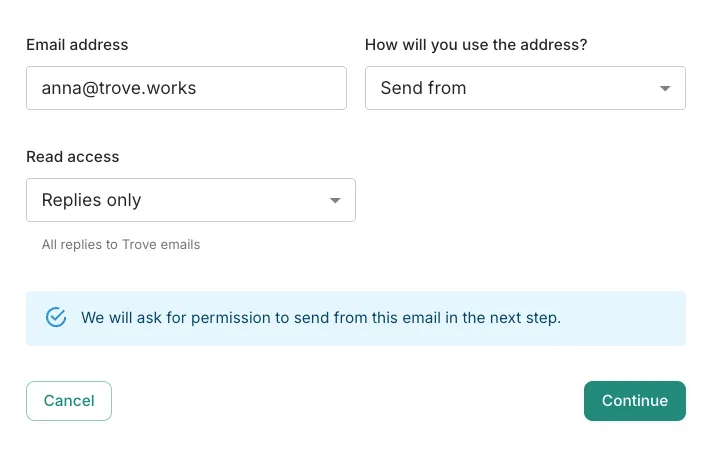
Choosing how the address is used and what Trove reads. Give Trove permission to send
If you choose send from, you will need to give Trove sending permissions. Gmail is usually just one click, but Outlook may require your IT admin to authorise the link. If so, here’s a page on how this works. For a custom domain, Trove walks you through the DNS records your domain needs to verify sending.
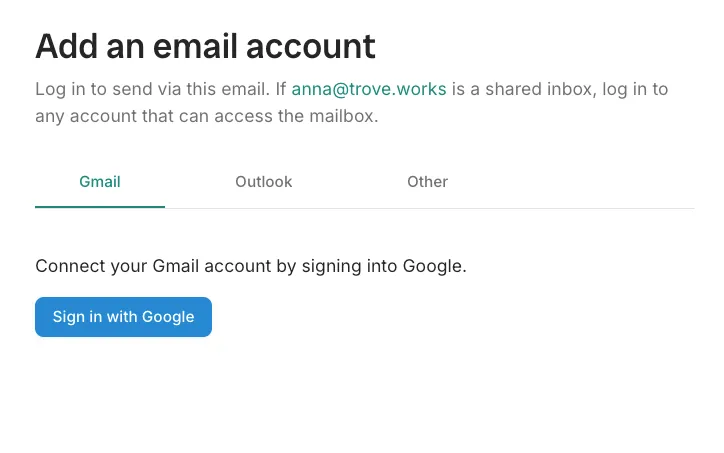
Signing in to grant Trove sending access. Set your signature and send yourself a test
Trove sends a test email through the connected address. Once you have added a signature, you can check the test looks right in your inbox. Every reminder from this point onwards will send from it.
What plans include it
Available on all plans
This feature is part of Trove's core set and is included on all plans.
There's no limit on how many addresses you add. If your business runs multiple entities or teams, each one can send from its own address.