Support › Late fees
Send late fee invoices to your customers
Trove raises your late fee in Xero in either draft or posted state, then emails it to the customer as soon as it's approved.
- Choose whether Trove raises the fee as a draft or a posted invoice in Xero
- Approve drafts in Xero yourself so nothing reaches a customer unchecked
- Have the fee emailed automatically once it's approved or posted
- Keep chasing on schedule even if a draft fee is still waiting for approval
- Interest continues accruing so you can send the correct interest each time
Available on all plans
How a late fee reaches your customer
Create the late fee invoice, either through a policy or manually
Set up a late fee policy on a workflow so every invoice that goes past your threshold gets one, or apply a fee to a single invoice.
Choose whether Trove creates a draft or a posted invoice in Xero
This is a policy setting. Draft means you must approve the invoice in Xero before anything is sent while posted means no approval step.
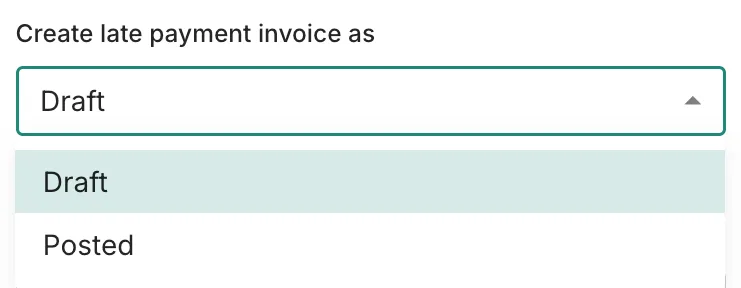
Choosing between a draft and a posted invoice in Xero. [If Draft] Approve the draft in Xero
Go to Sales > Invoices in Xero, click into the ‘Drafts’ tab and find the new draft late fee invoice in the list to approve.
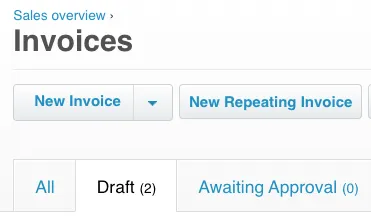
Go to the Draft tab in Xero Invoices. The late fee will be sent with the next reminder in Trove
Once approved, the late fee invoice will be attached to the late fee reminder you have set up. You can edit the email wording in the relevant workflow. If the late fee is still a draft, Trove will continue with the workflow and only attach approved invoices.
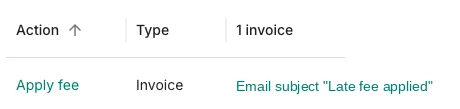
Configure the reminder email sent when the late fee is applied.
If a draft fee isn’t approved yet
An unapproved draft never blocks your chasing. If the fee is still sitting in Xero waiting for approval when its step comes up, Trove treats that step as if it hadn’t happened and carries on to the next reminder in the sequence on schedule. There’s no deadline to approve it by and nothing to lose by leaving it: whenever you do approve it, in Xero, Trove sends it to the customer at that point.
If you’re charging interest
Interest accrues daily, so the amount owed changes while the invoice stays unpaid. Trove doesn’t raise a new fee invoice each day. It updates the one it created and sends the current version each time the customer is emailed, so what lands in their inbox always matches what they owe that day.
If you change your mind
You can remove a late fee, and Trove removes the fee when you do.
Get started
Already a customer? Check which of your workflows raise drafts and which post straight away, so you know what’s waiting for approval in Xero. Otherwise, you can start a free trial here or book a demo if you’d like to see it first.
What plans include it
Available on all plans
This feature is part of Trove's core set and is included on all plans.
Late fees need a connected Xero account, because the fee itself is raised as an invoice in Xero.