Support › Late fees
Set up automatic late fees on overdue invoices
Automatically charge interest or a one-off fee on overdue invoices.
- Charge interest that accrues daily or a one-off late payment fee
- Apply different late fee policies for different customers
- Choose how many days overdue an invoice has to be before the fee applies
- Trove raises the fee in Xero in either a draft or posted state
Available on all plans
How to set up your late fee policy
Go to the workflow you want to add late fees to
In the workflow, click on ‘policies’.
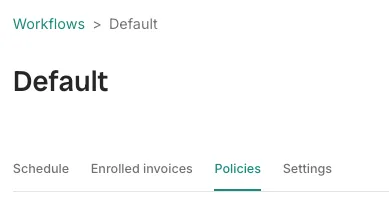
Opening the Policies tab on the workflow. Configure your policy timing and Xero integration
Decide when to apply the fee (how many days overdue), the description on the invoice and what account code to categorise the fee as in Xero. Finally, choose whether to raise the fee as a draft or a posted invoice in Xero. More on that here.
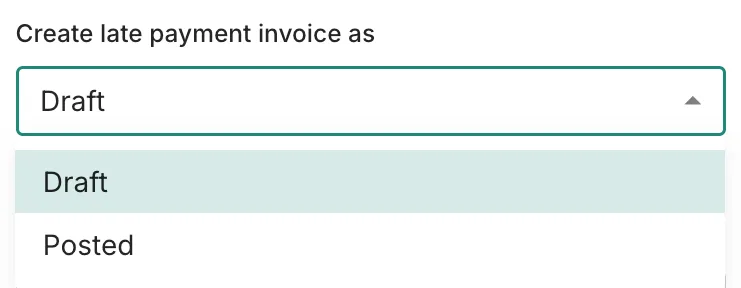
Choosing whether to raise the fee as a draft or a posted invoice. Set up a fixed fee or accruing interest
Option one is simple interest that accrues daily from the day the fee starts. Option two is a one-off fee, which can be a fixed amount or a percentage of the invoice.
Save your late fee policy
Your late fee will apply to any invoice that crosses the overdue threshold from step 2. It won’t apply to invoices already past the threshold so to charge one of those, apply a late fee to that invoice manually.
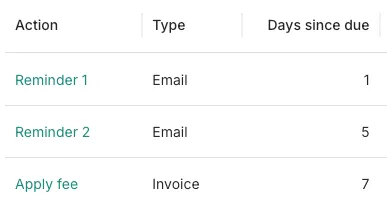
The saved policy showing as an Apply fee action in the workflow.
Sending your customer a late fee invoice
By default, Trove raises the fee as a draft invoice in Xero, which someone needs to approve before it reaches the customer. More on sending late fees here.
What plans include it
Available on all plans
This feature is part of Trove's core set and is included on all plans.
Late fee policies need a connected Xero account, because the fee itself is raised as an invoice in Xero.