Support › Workflows
Skip or exclude a customer from statements
Skip a monthly statement as a one off or permanently stop certain customers from getting statements. Here are two ways to exclude anyone from statement runs.
- Skip this month's statement for one customer without changing anything else
- Clone your workflow and remove the statement step to exclude a customer or a group of customers permanently
- Enrol the relevant customers into the cloned workflow so only they're affected
Available on all plans
How to skip this month’s statement
Go to Activity and search for the relevant customer
In your outbox, you will see all outgoing emails. Type the customer’s name into the search box above the eamils to find any scheduled emails for them.
Select the outgoing statement using the checkbox
On the left-hand side of the row there is a checkbox. Click this to select the outgoing statement. If you are skipping several statements, you can select multiple checkboxes.
Click “Skip 1” above the search bar
This will skip the selected emails only and cannnot be undone. Next month’s statements will send as normal.
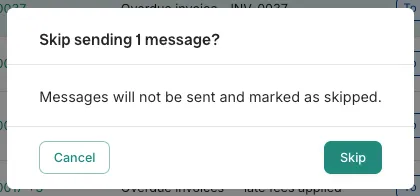
Confirming the skip.
How to exclude a customer from statements for good
Go to Workflows
In the workflows tab, you will see a list of all of your existing workflows.
Clone your default workflow
Click the three dots next to your default workflow (or whichever one your customer is currently enrolled in) and choose “Clone”. You can choose a new name for this workflow.
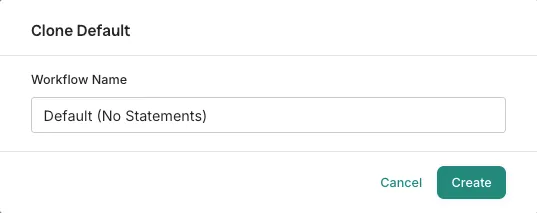
Naming the cloned workflow. Delete the statement step from the new workflow
Click into your new workflow and scroll down to monthly events. Here you will find the regular statement step. Click on the three dots next to this step and click ‘delete’. This only removes the statement step, any other steps in the workflow are unaffected.
Enrol the customer who shouldn’t receive statements into the new workflow
Go to the Settings tab of the new workflow. From here, you can enrol customers by name or set criteria (e.g. overdue balance under a certain amount) so anyone who matches is enrolled automatically. Once they’re moved over, they stop receiving statements but keep whatever else the cloned workflow still includes. If you move them back to the default workflow later, they will pick up from the step they were on originally so nothing is lost.
What plans include it
Available on all plans
This feature is part of Trove's core set and is included on all plans.