Support › Reporting
Expected payment dates synced with Xero
Trove keeps the expected payment date on your Xero invoices up to date automatically, using the dates your customers give you when they reply to a chase.
- Sets the expected payment date from a customer's reply, automatically
- Syncs the date to Xero
- Pauses chasing until the promised date, then resumes if it isn't paid
- Gives you the option to get notified if the date is missed
- Shows a live list of when payment is due to arrive, per customer
Available on all plans
What this does
When a customer tells Trove when they’ll pay, Trove records that as the expected payment date against the invoice and syncs it to Xero. That date then feeds Xero’s Short-term Cash Flow forecast, and it pauses Trove’s chasing on that invoice until the date arrives.
You don’t need to set anything up per invoice. As long as the workflow is chasing an invoice and the customer replies with a date, Trove handles the rest.
For the background on the field itself, see our guide to using Xero’s expected payment date feature, or how to use it to forecast cash flow.
Where expected payment dates come from
Trove sets an expected payment date in two ways:
Automatically, from a customer reply. When a customer replies to a chase with a date (“we’ll pay on the 28th”, “added to the next payment run on 3 August”, or an attached remittance advice), Trove reads the date and applies it to the invoice.
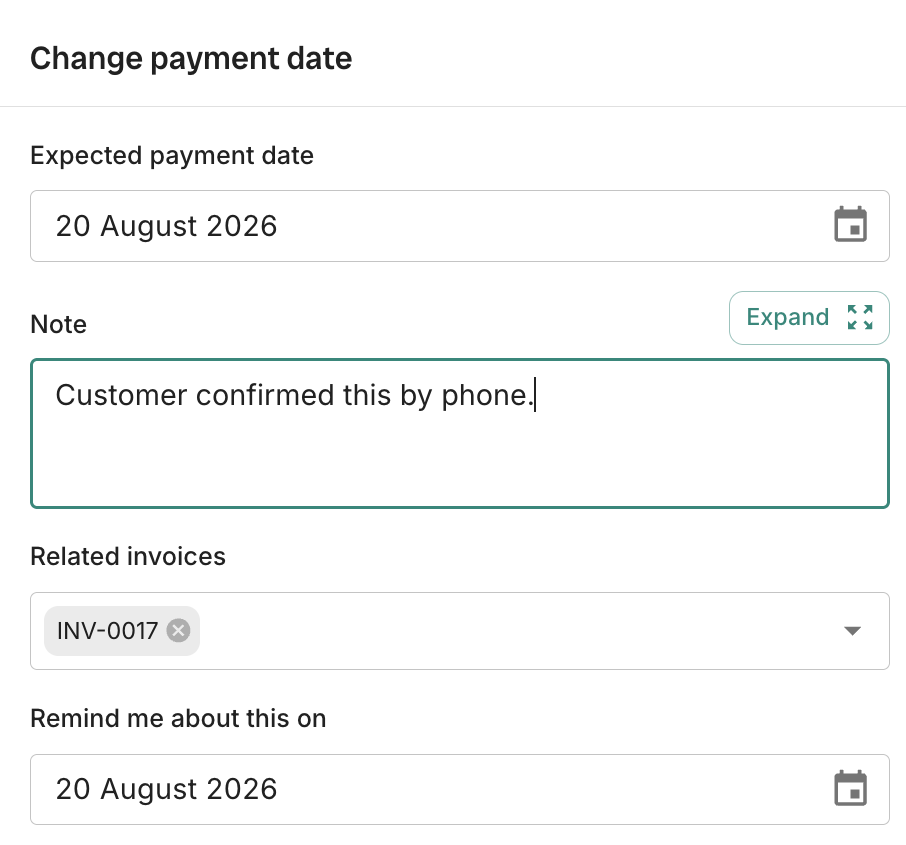
Manually, by you. You can set or override the expected date on any invoice yourself if you’ve been given a date another way, such as over the phone.

Where to see expected payment dates in Trove
Expected payment dates appear against each invoice in your invoice list, and you can view all invoices with an upcoming expected date together as a live list of when payment is due to arrive.
This list updates whenever a new date comes in, so it always reflects the most recent promise from each customer rather than a snapshot you have to refresh.
How chasing pauses and resumes around the date
Once an expected payment date is set, Trove pauses chasing on that invoice until the date passes. The customer won’t receive further reminders in the meantime.
If the date passes and the invoice still hasn’t been paid, Trove resumes the workflow automatically and picks chasing back up. Nothing needs to be switched back on.
Setting a reminder for when a date passes
If you’d like to step in personally when a promised date arrives, set a reminder against the invoice. When the expected payment date passes, Trove prompts you to review the invoice and decide how to follow up.
Troubleshooting
A customer replied with a date but the expected date didn’t update. Check that the reply came into the mailbox Trove is connected to. If the date is phrased vaguely (“soon”, “shortly”), Trove won’t set an expected date from it, since there’s no specific day to record.
The date in Xero doesn’t match the date in Trove. The two-way sync usually resolves within a few minutes. If they’re still out of step, check the Xero connection is active on your account. If it persists, get in touch and we’ll take a look.
What plans include it
Available on all plans
This feature is part of Trove's core set and is included on all plans.