Support › Workflows
Automate invoice chasing with workflows
A workflow is an automatic reminder schedule you enrol customers into, so Trove sends reminders and statements and stops when an invoice is paid.
- Enrol customers or invoices based on criteria, then let it run
- Send invoice reminders, statements and thank-yous from one schedule
- Reach people by email, SMS, or an internal notification
- Add as many steps as you need, scheduled by due date, day of the month or action
- Every workflow stops chasing an invoice automatically once it's paid
Available on all plans
How to build a workflow in Trove
Start from one of Trove’s ready-made workflows, or build your own from scratch. Either way, it’s the same steps.
Start from a default or a blank workflow
From Workflows, choose Add new. Start from Default to send regular reminders plus a monthly statement, Statements only if that’s all you need, or Build your own to choose every step yourself.
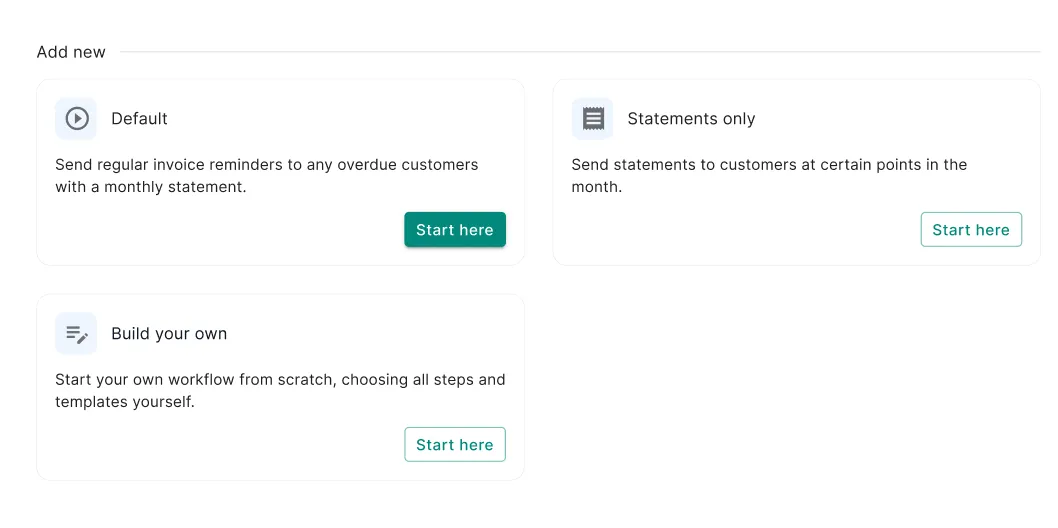
Choosing a default workflow or starting from scratch. Choose who’s enrolled
Set the criteria for which customers or invoices join this workflow. Anyone who matches is enrolled automatically, so the right people are chased without you adding them one by one.
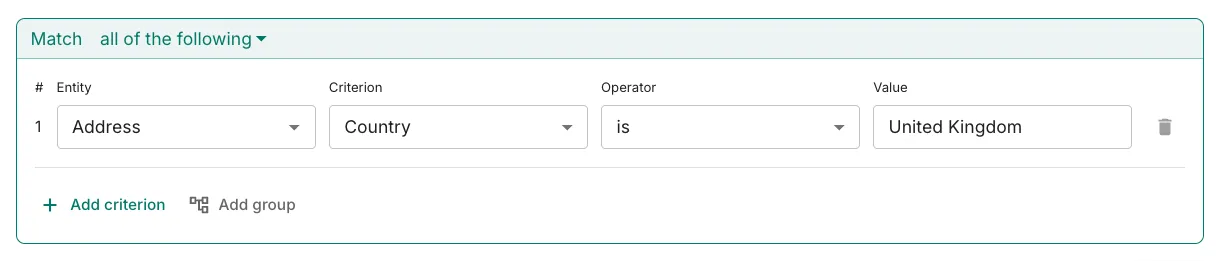
Setting enrolment criteria for the workflow. Build your steps
Add each step in the sequence: an invoice reminder, a statement, or a thank-you for paying. Send by email, SMS, an internal notification, or a call-back task that reminds your team to phone the customer themselves, rather than an automated call. Trigger each step by the number of days before or after the invoice was due, by a set calendar date, or by the invoice being paid, and add as many as you need. On email steps you can cc or bcc anyone who needs a copy.
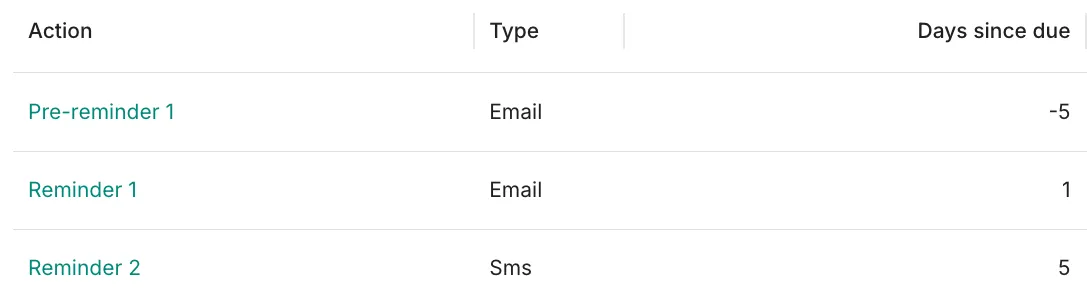
Adding steps with their triggers and channels. Write the messages, with AI if you like
Choose a template, or select Create new and either Write my own or Generate with AI. Templates can be set separately for a single invoice or for a customer with 2 or more overdue. Edit the result until it sounds like you, and it’s reused every time the step runs.
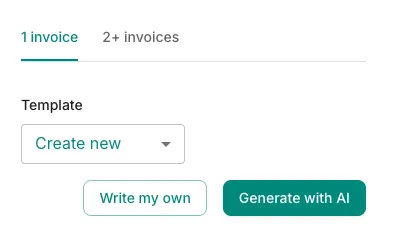
Drafting a message template. Add policies and notifications
Apply policies to the workflow, like late fees or subscription reminders. Then pick the notifications you want, such as an alert when an invoice in the workflow is paid, or a regular summary of what’s still overdue.
Turn the workflow on
Switch it to ‘manual’ first. This will draft the reminders but won’t send anything until you approve it. Once you are happy, you can switch it to automatic to take all the work off your plate.
What plans include it
Available on all plans
This feature is part of Trove's core set and is included on all plans.