
Summary
- The expected payment date is the day you now realistically expect an invoice to be paid, as opposed to the due date it was contractually owed.
- Keeping it current does two jobs: it keeps your forecast honest and it stops you chasing customers who have already told you when they’ll pay.
- Maintaining it in Xero is completely manual so you have to stay on top of customer communications if you want it to be useful.
- Xero only lets you change the expected payment date one invoice at a time. Trove lets you set one date across several invoices at once and syncs it back to each one in Xero.
- Trove updates the expected payment date in Xero straight from your customers’ email replies, pauses chasing until the date passes, and resumes if the money doesn’t land.
What is Xero’s expected payment date feature
Every invoice in Xero has a due date: the day payment was contractually due. The expected payment date tells you when the money is expected, based on what the customer has actually told you.
Say you invoice a customer on 30-day terms and the invoice falls due on the 1st. You send them a reminder and they say it will be paid on their next payment run on the 7th.
You now have two pieces of data:
Due date: 1st of the month
Expected payment date: 7th of the month
Most businesses track both for different reasons.
Why it’s important to keep track of expected payment date
There are two reasons the expected payment date is worth getting right.
- Cash flow forecast. Your cash flow forecast is only as accurate as your expected payment date. If an invoice is due on the 1st but the customer has confirmed payment for the 7th, you need to show the cash as landing on the 7th. Otherwise the forecast is made up of fake data.
- It stops unnecessary chasing. Few things annoy a customer more than another reminder when a payment date has been agreed. Avoid this by recording the expected payment date. Then everyone chasing that account can see the promise and hold off until it passes. It’s usually a promise worth trusting: 7 in 10 promised payment dates are met within three days.
Keep the dates honest and the whole process gets calmer: a forecast you can trust and no reminders going out to people who’ve already told you when they’ll pay.
How to update expected payment date in Xero
In Xero, you set and edit expected payment dates from the Awaiting Payment tab of your sales invoices (Sales > Invoices > Awaiting payment). From the table, you can enter an expected payment date directly into the Expected Date field:
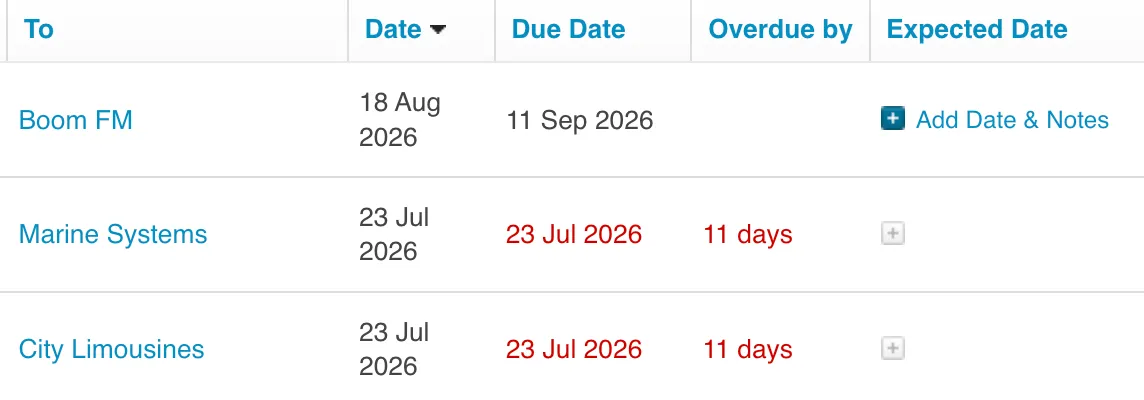
This works but will always be a manual step. If a customer gives you a new date, someone has to go back into Awaiting Payment and edit it manually.
How to update the expected payment date on multiple invoices in bulk
Customers rarely pay one invoice at a time. A customer with three overdue invoices replies to say they’ll clear the lot on Friday. Or their payment run covers everything from last month in one go. You now have one date that applies to several invoices.
Xero doesn’t have a bulk option for this. You open each invoice from Awaiting Payment, set the expected date and save, then do the same for the next one. A bookkeeper we spoke to recently, who runs credit control on behalf of a client, called Xero “notoriously bad” at it. With a handful of invoices it’s tedious. With a customer who has 15 open invoices, it’s the job that gets skipped, and your forecast drifts.
Updating expected payment dates in bulk with Trove
In Trove you set the date once and apply it to every invoice it covers:
- Click ‘Add note’ at the to pof the customer page and enter the new expected payment date. Trove will also automatically suggest this action if the new expected payment date is sent via email.
- Add the related invoices the same date applies to.
- Save. Trove updates the expected payment date on each invoice in Xero.
Here’s a screenshot of how it works:
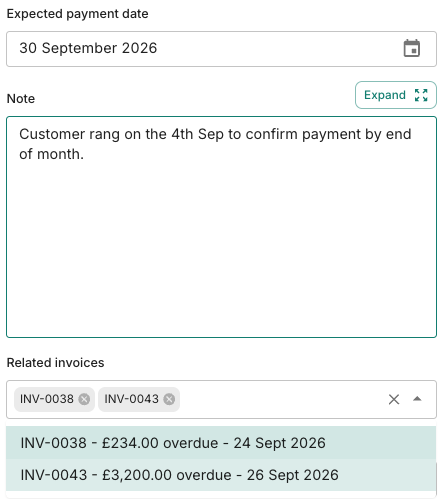
If you add a note as shown above, you can publish it to Xero and it’s posted to every one of those invoices. You can also set yourself a reminder for the day the payment is due, so you know to check it landed.
Trove updates expected payment date directly from your email
When you chase an invoice through Trove and the customer replies with a new date, Trove runs a process each time:
- It reads the reply and updates the expected payment date against the invoice in Xero for you.
- Then it pauses further chasing until that payment date arrives.
- It can also draft an email to the customer for you to send, thanking them.
- If the date passes and the money hasn’t landed, Trove picks chasing back up automatically.
This avoids expected payment dates going stale or getting lost somewhere in your email. We’ve written a full guide to updating Xero’s expected payment date directly from your email. If you already use Trove, our support docs cover exactly how expected payment dates sync with Xero.
Using expected payment date to forecast cash flow
Once your expected payment dates are current, they become a live picture of when money is actually due to arrive, customer by customer. That’s the difference between a forecast built on due dates (which customers routinely miss) and one built on what they’ve actually promised.
Here’s how to use Xero’s expected payment date to forecast when you’ll receive payment.
The takeaway
Xero’s expected payment date is one of the more useful fields in your ledger and one of the most neglected because keeping it current is manual work that never reaches the top of the pile.
If updating it manually is the part that never happens, that’s exactly the job Trove takes off you.
Frequently asked questions
What does expected payment date mean in Xero? It’s the date you realistically expect an invoice to be paid, as opposed to the due date on the invoice. You usually set it when a customer tells you when they’ll pay. Xero uses it in the Awaiting Payment view and in cash flow reporting, so keeping it current gives you a more accurate picture of when money will arrive.
Can you bulk update expected payment dates in Xero? No. In Xero you update the expected payment date on each invoice separately, from Sales > Invoices > Awaiting payment. To set one date across several invoices at once, you need a tool that connects to Xero. In Trove you change the date on one invoice, add the related invoices, and the date syncs back to each of them in Xero. How to update the expected payment date on multiple invoices covers the steps.
Make your expected payment dates into useful data with Trove
Trove reads your customers' replies, updates the expected payment date in Xero, and chases what's still outstanding, all from your own email.