User roles and permissions
Decide who can see, send and change information, across your whole team.
- View-only or full Trove access, per person
- Approvals for sensitive actions
- Every decision logged for easy auditing
Trusted by finance teams around the world







How user roles and permissions work in Trove
-
1
Decide who can do what
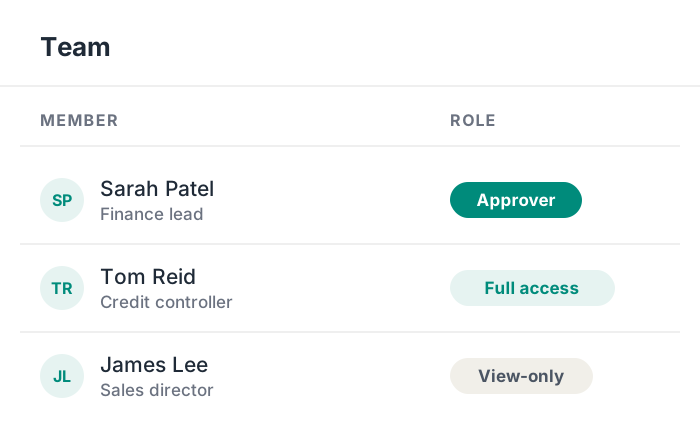
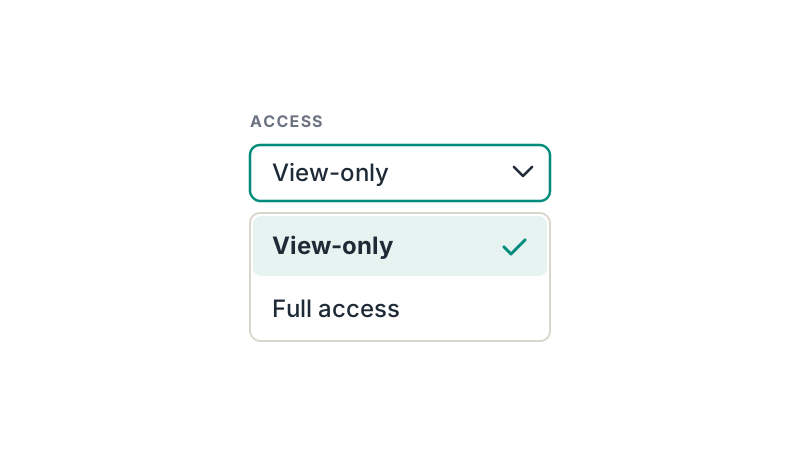
Give some members of the team view-only access to Trove, reserving full access for the people who run credit control.
Limit specific actions to the people you trust with them, such as sending emails or changing a workflow.
-
2
Limit access by entity
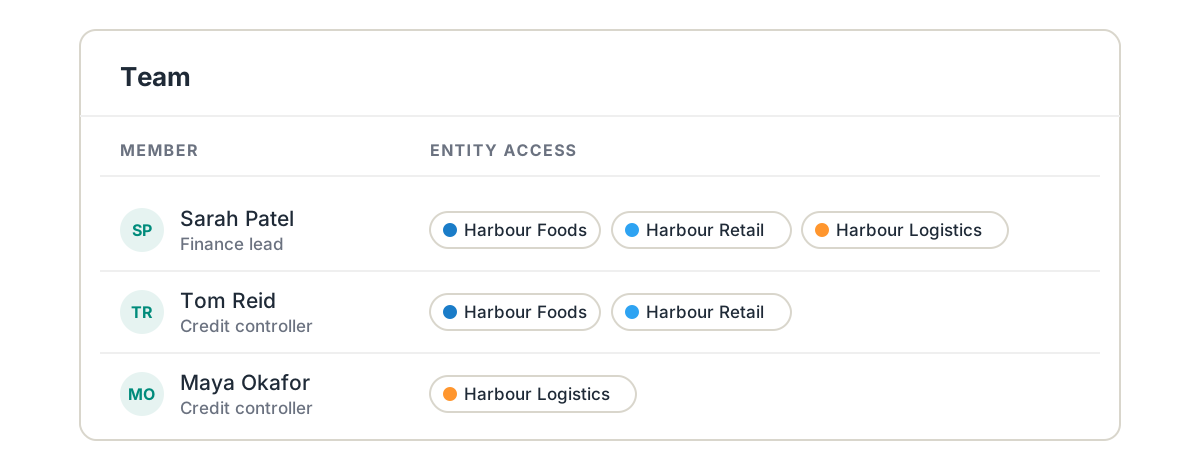
If you run several companies, give each person access in Trove only to the entities they look after.
A credit controller for one part of the group can't see or chase another part's customers, and the finance lead still sees everything.
-
3
Approvals for key actions
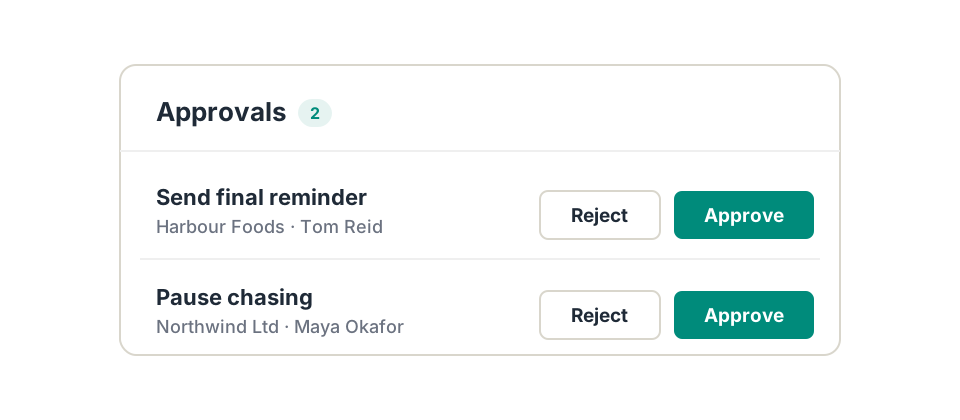
If someone's access is limited, Trove sends their tasks to an approver.
Approvers get a list of tasks in Trove, and approve or reject each one. Nothing reaches a customer until the right person has said yes.
-
4
A record of every decision
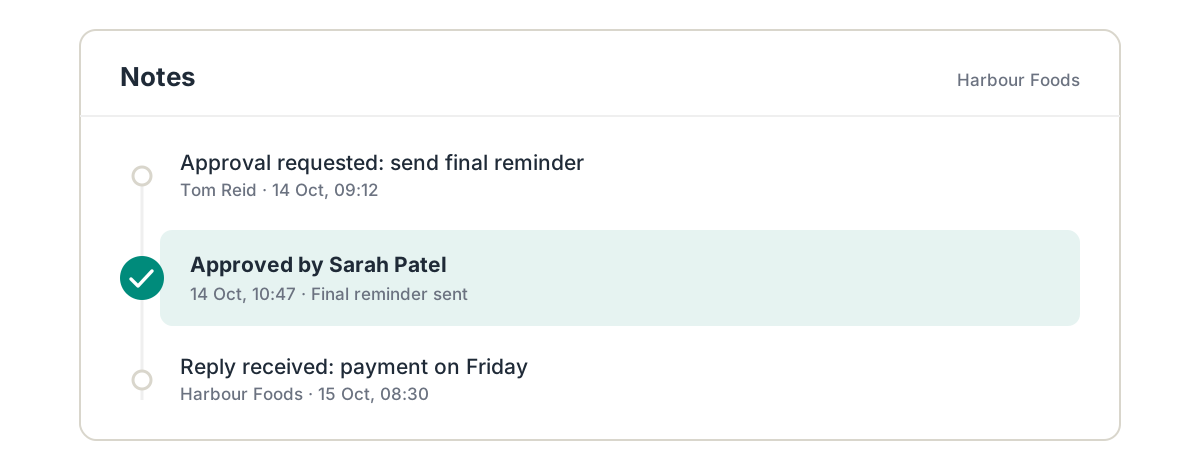
Trove stores every approval and rejection in the customer's notes, alongside the emails and replies.
Anyone reviewing an account, from the finance lead to your auditors, can see who approved what and when.
Team approvals: common questions
Everything you need to know
Does Trove have user roles and permissions?
Yes. User roles, permissions and team approvals are on the Advanced plan. You can limit certain actions and entities to certain people.
Can I give someone view-only access?
Yes. You can give people view-only access, so they can see your debtor book without emailing customers or changing anything.
Can I limit who can send emails to customers?
Yes. You can limit sending emails, and other actions, to the people you choose. Anyone else's request goes to an approver.
How do approvals work?
Approvers get a list of tasks in Trove and approve or reject each one. Nothing is sent until it's approved.
Is there an audit trail?
Yes. Every approval and rejection is stored in the customer's notes, so you can see who approved what and when.
Can I limit people to certain entities?
Yes. On the Advanced plan, you can give each person access only to the entities they look after.
Related features
-
Multi-entity support
Every company in your group under one login, with each brand chasing on its own.
-
Kanban board
A shared board of overdue accounts, synced with your accounting system, with an owner on every card.
-
AI Reply Agent
Reads customer replies, logs promised payment dates and drafts your response for you to approve.
See it working on your own customers
See team approvals in action.
User roles, permissions and team approvals are included on the Advanced plan.
Last updated