Summary
- There’s no reminder button. Xero only sends reminders on the schedule you set, so chasing today means doing it manually.
- Option 1, email the invoice again: Sales > Invoices, open the overdue invoice, click Email, pick your overdue template and send. Best for one invoice.
- Option 2, send a statement: Sales > Send statements. Best when a customer owes you on several invoices.
- Set up an overdue template once, so each chase takes about a minute.
- Add a note to the invoice each time you chase, because Xero’s history won’t tell you whether it was the first reminder or the third.
- Automate when chasing manually stops being quick, and step in personally for the customers who need it.
Can you send a Xero invoice reminder manually?
Yes, with a workaround. Xero users have asked for a manual send button since July 2022, and the idea is still marked “under review” on Xero’s product ideas forum.
What you can do is send the invoice again with a reminder message or send a statement. Both land in the customer’s inbox like a reminder would.
| Option | Best for | Time per customer |
|---|---|---|
| Email the invoice again with an overdue template | One overdue invoice | About a minute |
| Send a statement | A customer with several unpaid invoices | About a minute |
Option 1: email the invoice again with an overdue template
This is the closest thing Xero has to a manual reminder.
- Go to Sales, then Invoices, and open the overdue invoice.
- Click Email.
- Click Edit and pick your overdue template from the template list.
- Check the recipient. Xero uses the invoice contact’s email, so change it if someone else pays your invoices.
- Click Send.
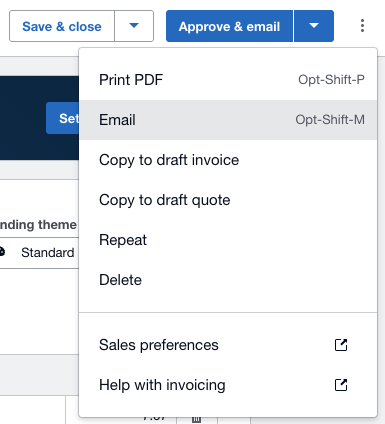
The customer gets the invoice and an online payment link, with your reminder wording instead of the original cover note.
Set up an overdue email template once
If you skip this, you’ll be rewriting the same message every time. Set up a template called “Overdue reminder” in your email settings and it appears in the list in step 3.
Here’s wording you can copy:
Subject: Invoice [Invoice Number] is now overdue
Hi [Contact First Name],
A quick reminder that invoice [Invoice Number] for [Amount Due] was due on [Due Date] and is still showing as unpaid on our side.
You can view and pay it here: [Online Invoice Link]
If it’s already on its way, just reply with the date you expect it to clear and I’ll update our records.
Thanks,
[Your name]
Asking for a payment date matters. A date gives you something to follow up on, and a reply tells you the email reached a real person.
Option 2: send a statement
If a customer owes you on several invoices, one statement is clearer than several separate emails. A statement lists everything outstanding and the total.
Go to Sales, then Send statements. Pick the customer, choose an outstanding statement and email it.
Xero can’t send statements on a schedule, so this is always a manual job. Here’s what to do if you want statements to go out automatically.
Keep a record of when you manually chase overdue invoices
Xero’s invoice history shows when an invoice was emailed, but it doesn’t tell you whether that email was the first chase or the third. If you chase manually, add a short note to the invoice each time, such as “Reminder 2 sent 17 Oct, asked for a payment date”.
That note is what stops two people in your team chasing the same customer on the same day.
Xero manual or automatic reminders compared
Manual reminders work well when you have a handful of late payers and know each of them. They stop working when you’re chasing more than 10 or 15 invoices a week, or when you forget a week.
Timing is the reason to get this right. Trove’s data shows that of the invoices that get paid, half are paid after the first reminder and about 75% by the second. A reminder that goes out a week late is a week of cash you didn’t need to wait for.
| Manual | Xero automatic reminders | |
|---|---|---|
| Send on demand | Yes | No |
| Pick the wording per customer | Yes | No, one set for everyone |
| Runs without you | No | Yes |
| Number of reminders | Unlimited | Up to five per invoice |
| Goes to a different contact | Yes, if you change it each time | No, uses the invoice contact |
Most businesses end up running both. Xero’s automatic reminders handle the routine chasing and you step in manually for the customers who need a personal email. Our guide to Xero invoice reminders covers setting up the schedule and its six limits.
Upgrading from Xero’s invoice reminders with Trove
It’s time to look at a tool built for chasing if:
- you’re editing the recipient manually every time
- you’ve hit Xero’s five reminder limit
Trove connects to Xero and:
- sends reminders to the right contact for each customer
- lets you set different schedules for different customers
- sends reminders from your own email address, not an @xero one
- reads customer replies and suggests the next step, such as logging a promised payment date
- adds SMS, phone call reminders and letters by post when emails go unanswered
- syncs notes and activity back to Xero, so everyone can see who was chased and when
- adds late payment fees to overdue invoices for you
You can start a free trial here or book a demo if you’d like to see it first.
Frequently asked questions
Is there a resend reminder button in Xero?
No. Xero sends reminders only on your schedule. To chase now, go to Sales > Invoices, open the invoice, click Email and use an overdue template.
Can I send an invoice reminder without turning on automatic reminders?
Yes. Emailing the invoice again with an overdue template doesn’t need automatic reminders turned on.
How do I chase a customer who owes on several invoices?
Send them a statement from Sales > Send statements. It lists every unpaid invoice and the total in one email.
Does a manual reminder reset Xero’s automatic reminder schedule?
No. Xero’s schedule is based on the due date, so automatic reminders carry on as planned. Check what’s due to go out before you chase manually, so your customer doesn’t get two emails in a day.