Summary
- Xero is email-only: there’s no built-in SMS option, so a text reminder has to be sent manually or through a separate tool.
- Why email sometimes doesn’t work: shared AP inboxes, ignored threads and spam filtering all reduce how often a reminder actually gets read.
- When to use SMS: best as an escalation once email reminders have gone unanswered, not as a first contact or for a new or formal relationship.
- How Trove does it: add an SMS step to a reminder sequence that fires automatically after a set number of unanswered emails.
Does Xero send invoice reminders by SMS?
No. Xero’s invoice reminder system is email-only. When a reminder runs, Xero sends an email to whoever is set as the contact on the customer record. There’s no SMS step, no text message option, and no integration with any messaging service built into Xero. If you want to reach a customer by text about an overdue invoice, you’re doing it manually.
For customers who don’t monitor a shared AP inbox closely or don’t spend much time on their computers, email reminders can sit unread for days.
However, Xero does let you store phone contact details for customers which means you may have an address book ready to go to start sending text messages automatically. We’ll walk through how to automate this below.
Why does email sometimes fail to reach the right person?
A reminder landing in the right inbox isn’t the same as a reminder being read. There are a few reasons email falls short:
Shared AP inboxes. Many companies route supplier emails to a shared accounts payable address. That inbox can receive hundreds of emails a day. A politely worded payment reminder competes with invoices, statements, queries and spam. It’s easy to miss, easy to defer, and easy to forget.
Email threads that go quiet. After two or three reminders, your emails look like the last ones. Customers learn to tune them out. The sequence keeps running; nothing changes.
Spam filters. Xero sends reminders from @xero.com, not your own domain, which increases the chance of hitting a spam filter before the email reaches anyone. (We cover this in more detail in our guide to why Xero reminders go to spam.)
An SMS to a named person’s mobile cuts through all of this. It arrives in a different place, looks different, and demands a different kind of attention. Most people read a text within a few minutes of receiving it.
When should you send an SMS reminder instead of an email?
SMS works best as an escalation step, not a first contact. For most overdue invoices, a well-timed email sequence recovers the debt - Trove’s data shows that two reminders bring in around 75% of the invoices that get paid. SMS earns its place when email has already run without a response.
A few situations where it tends to work well:
- An invoice is significantly overdue and email reminders have gone unanswered.
- You know the right contact is a named person with a mobile, not a shared inbox.
- The relationship is direct enough that a text won’t feel out of place.
- You want to prompt a reply before escalating further.
It’s worth being direct about when not to use SMS too. For a new customer, a formal corporate relationship, or an invoice that’s only a few days late, a text can feel abrupt. The sequence matters: email first, text when email hasn’t worked.
How to send SMS invoice reminders with Trove
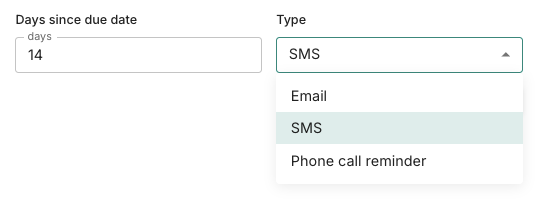
Trove lets you add an SMS step into your reminder sequence, so a text goes out automatically after a set number of email reminders have gone unanswered. SMS reminders work internationally so you are not limited by geography.
Here’s how it works:
- In Trove, open the reminder sequence for a customer or invoice.
- Add a new step and choose SMS as the channel.
- Write your message. Keep it short - a name, the invoice reference, the amount, and a clear ask. Trove’s AI can draft wording if needed.
- Set the number of days after the previous reminder that the SMS should go out.
The SMS goes to the mobile number on the contact assigned to that invoice. If you haven’t assigned a specific contact, it uses the primary contact on the Xero customer record.
Other ways to reach a customer who isn’t answering email
SMS works best early on, as a quick nudge when an email has probably been missed. Trove has two other channels for later in the sequence:
- Phone call reminders. Trove reminds someone on your team to call the customer at a set point, such as 21 days overdue. For smaller invoices, a call often gets further than another message.
- Letters by post. For the final stages, a letter reaches a different person and shows you’re serious. Here’s when to send an overdue invoice letter by post, with two examples.
- Monthly statements. A statement shows everything a customer owes in one place. Here’s the answer to can Xero send statements automatically, and what to do instead.
Try it on your own Xero account
Trove runs a free 30-day trial and takes about 15 minutes to connect to your Xero account. Start a free trial or book a demo if you’d like to see the SMS step in action first.
For more on controlling who reminders reach in the first place, see why Xero sends reminders to the wrong contact and how to send reminders to a different email than the invoice.