

Summary
- There are two ways to show account managers which Microsoft Dynamics 365 Business Central customers are overdue in HubSpot. A data sync copies invoices and balances from Business Central into HubSpot. A credit control tool that syncs with both logs the chasing on the HubSpot record as well.
- A Business Central to HubSpot data sync shows what the ledger knows. Connectors such as Rapidi put posted sales invoices on the HubSpot company record, but not what finance has sent or what the customer said back.
- Trove is credit control software that syncs two-way with Business Central and logs every chaser and statement it sends on the customer’s HubSpot record as email activity. It can also route chasing by HubSpot owner and bring the account manager in at a set point in the sequence.
- Account managers need four things: the overdue total, the oldest overdue invoice, the last chaser sent and any date the customer has promised. They don’t need every reminder in their inbox.
- Business Central is on Trove’s Advanced plan (£300 a month), which also includes the HubSpot integration. Every Trove plan has unlimited team members, so account managers can log in to Trove without a Business Central licence.
Why account managers need to see overdue status
The question finance hears most from sales is “is this customer OK to sell to?”. It comes up before a new order is confirmed, before a renewal, and when a customer asks for better terms. If the answer lives only in Business Central, the account manager has to ask finance every time, or doesn’t ask at all.
It comes up on Trove’s demo calls too. In one set of four calls in July, three prospects raised sales visibility without being asked. In one of them, the sales team worked in HubSpot and couldn’t see which customers had overdue invoices, because the invoices lived in the accounting system.
The cost runs both ways. An account manager who can’t see the ledger takes a new order from a customer who is 60 days overdue. A credit controller who can’t see the relationship sends a firm reminder to a key account the week a renewal is being negotiated.
Option 1: a Business Central to HubSpot data sync
A data sync copies records from Business Central into HubSpot on a schedule, so the company record shows invoices next to deals. It’s the right fit when sales mainly needs invoice history and finance chases separately.
Rapidi’s HubSpot and Business Central integration is a typical example. Its standard template syncs companies, contacts, products, prices, deals and sales orders, and puts posted sales invoices into a HubSpot custom object, so the company record shows order and invoice status. Transfers run daily, hourly or as often as every minute, depending on the subscription, and it doesn’t need a HubSpot Data Hub subscription.
What a data sync can’t show is what finance hasn’t put in Business Central. Reminders sent from Outlook, the customer’s reply, the date they promised to pay and the query they raised usually live in someone’s inbox, so a sync has nothing to copy. The account manager sees that an invoice is overdue, but not whether finance has chased it, or what the customer said.
Option 2: a credit control tool synced with both
A credit control tool reads the ledger from Business Central and the relationship from HubSpot, then runs the chasing in between. It’s the right fit when finance wants sales to see the chasing, not just the balance.
Trove works like this:
- It syncs two-way with Business Central. Trove’s ERP integrations read customers, invoices and payments, and write promised payment dates, new contacts and emails back. When a payment is posted, chasing stops on that invoice.
- It logs every chaser and statement on the HubSpot record. The HubSpot integration matches HubSpot companies to Business Central customers by email domain. Each chaser and statement appears in the company record’s email activity, like any other email, so the account manager sees what finance has sent in the CRM they already use.
- It routes chasing by HubSpot data. Workflows can use any HubSpot company or contact property, including the company owner, deals and custom properties. Key accounts can get a gentler sequence, or one that brings in their owner sooner.
- It brings the account manager in at a set point. A workflow step can copy the HubSpot owner in on a chaser, send a later reminder from them, or hand the account over to them.
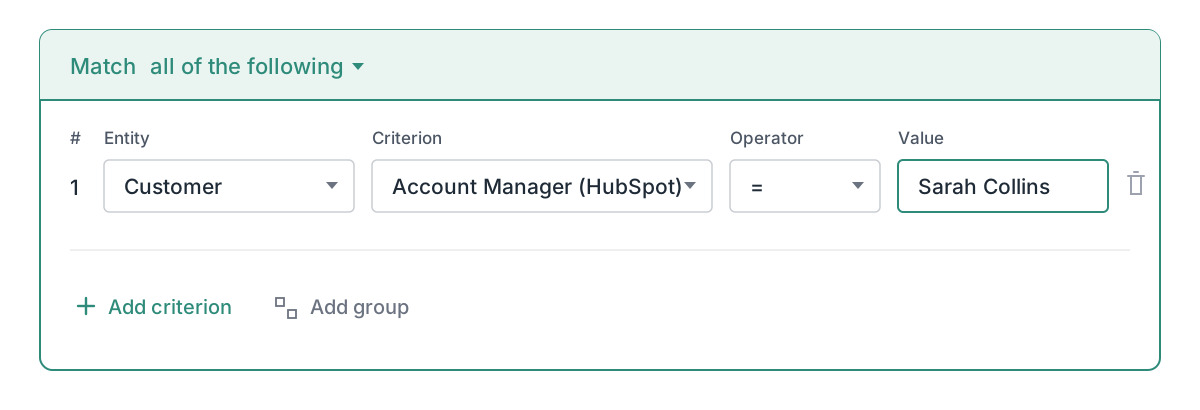
Replies and promised dates stay in Trove. If the account manager needs them, Slack and Teams alerts can tell them by direct message when one of their customers replies or pays, with a link to the customer in Trove.
Data sync or credit control tool: how they compare
| Option 1: Business Central to HubSpot data sync | Option 2: credit control tool synced with both (Trove) | |
|---|---|---|
| What sales sees in HubSpot | Posted invoices, orders and their status on the company record | Every chaser and statement Trove sends, logged as email activity on the customer's HubSpot record |
| Chasing history | Only what's stored in Business Central. Emails sent from Outlook aren't included | Every chaser and statement, plus replies and promised dates in Trove |
| Routing chasing by account owner | No. Chasing still runs from Business Central reminders or Outlook | Yes. Workflows use HubSpot owner, deals and custom properties |
| Bringing the account manager in | Manually, by finance emailing or messaging them | Automatically, at a set step: copied in, sent from them, or handed over |
| Other data it moves | Companies, contacts, products, prices, deals and orders, both ways where you choose | Promised dates, contacts and emails written back to Business Central |
| Setup | Field mapping in both systems, for example ExternalID fields and HubSpot custom objects | Connect Business Central and HubSpot in Trove, then build the workflows |
| Licences needed | HubSpot seats for sales. Rapidi says sales often doesn't need a Business Central licence | No Business Central licence for sales. Unlimited Trove users on every plan |
Some teams run both. A data sync handles deals, orders and invoice history for the whole business, and a credit control tool handles the chasing and the hand-off. If you already have a sync in place, the question is whether sales also needs to see what finance is doing about the overdue invoices.
What account managers should see, and what they shouldn’t
Account managers need enough to answer “is this customer OK to sell to?” without asking finance. That’s four facts:
- The overdue total, and how much of it is more than 30 days overdue.
- The oldest overdue invoice, with its number and due date.
- The last chaser sent, so they don’t promise the customer something finance has already followed up on.
- Any promised payment date, so they know whether the customer has already committed.
They don’t need every reminder in their inbox. Copying an account manager on every chaser trains them to ignore the emails, and the one that matters gets missed. Copy them in at one agreed step instead, and keep the full history where they can look it up.
That’s also the clearest way to split the work. The account manager knows the customer and can find out why an invoice is stuck. Finance knows what’s owed and runs the sequence.
In practice, finance agrees one point with sales, for example the third overdue chaser to a customer over £5,000. Trove copies the HubSpot owner in on that chaser, and the account manager either calls their contact or tells finance there’s a reason to hold. Until then, finance’s reminders do the work, and the account manager only hears about the accounts that need them.
If you’re still agreeing those points with sales, here’s when to hand an overdue account to the account manager, with thresholds you can start from.
Worked example: one overdue customer seen from HubSpot
Hannah is the credit controller at Example UK Ltd, which runs its ledger in Business Central. Tim is the account manager for Example Retail Ltd in HubSpot. Example Retail Ltd owes £12,600 on invoice EUK-4417, due on Friday 2 October 2026. Example UK Ltd’s workflow for customers over £5,000 copies the HubSpot owner in on the third overdue chaser.
| Date | What happens | What Tim sees in HubSpot |
|---|---|---|
| Fri 2 Oct | Invoice falls due. Trove sends the due-date reminder to Example Retail Ltd's accounts payable team | The reminder, in the email activity on the Example Retail Ltd record |
| Fri 9 Oct | First overdue chaser. No reply | The chaser, in the record's email activity |
| Fri 16 Oct | Second overdue chaser, with a statement of all open invoices. No reply | The chaser and the statement, as email activity |
| Mon 19 Oct | Tim's contact at Example Retail Ltd asks for a new order. Before confirming it, Tim checks the record | A reminder, two chasers and a statement in 17 days |
| Fri 23 Oct | Third overdue chaser goes out with Tim copied in. Tim calls his contact, who finds the invoice waiting for approval from a manager on leave | The third chaser in the email activity, with Tim copied in |
| Mon 26 Oct | Example Retail Ltd replies with a payment date of Fri 6 Nov. Trove picks it out, Hannah approves it, and the date is written back to Business Central. Hannah holds further reminders until then | Nothing new in HubSpot. Tim gets a Teams direct message that the customer replied |
| Fri 6 Nov | £12,600 is posted in Business Central. Chasing stops | Nothing more is sent |
On 19 October Tim didn’t have to ask Hannah whether Example Retail Ltd was up to date. He could see finance had sent a reminder, two chasers and a statement in 17 days, so he held the new order until he’d spoken to his contact. Hannah didn’t have to chase Tim either: the workflow brought him in at the step they’d agreed.
FAQs
Does HubSpot integrate with Microsoft Dynamics 365 Business Central?
Yes, through an integration app or platform. Rapidi, for example, syncs companies, contacts, deals, orders and posted sales invoices between the two. Credit control tools such as Trove sync with both and log the chasing on the HubSpot record.
Can my sales team see overdue invoices without a Business Central licence?
Yes. With Trove, every chaser and statement is logged as email activity on the customer’s HubSpot record, and Trove has unlimited team members on every plan, so account managers can log in to see the full history. Read more about how Trove’s HubSpot integration works.
Can reminders come from the account manager instead of finance?
Yes. A Trove workflow can send later reminders from the HubSpot owner, copy them in on a chaser, or hand the account over to them at a set step. Finance still runs the sequence and decides where that step sits.
Which Trove plan do I need for Business Central and HubSpot?
Advanced, at £300 a month. Business Central is on the Advanced plan, and the HubSpot integration is on both Integrated and Advanced. See Trove’s ERP integrations for the other systems on each plan. You can also find Trove on Microsoft Marketplace.
Do customer replies and promised dates show in HubSpot?
No. Trove logs the chasers and statements it sends on the HubSpot record as email activity, like any other email. Replies and promised payment dates stay in Trove, and promised dates are written back to Business Central. Account managers can get a Slack or Teams alert when one of their customers replies.
If you’re comparing tools for Business Central more widely, we’ve covered credit control software for Business Central users and how to chase overdue invoices in Business Central with its own reminder terms. To give different customers different sequences, see how to set up different reminders for different customers.
Trove runs a free 30-day trial, with no card needed. You can start a free trial here or book a demo if you’d like to see it with your own Business Central and HubSpot data first.