
Summary
- Business Central’s cash flow forecast places open customer invoices on their due date. Microsoft’s Suggest Worksheet Lines code sets each invoice’s cash flow date from its Due Date, and the invoice stays there even when the customer has told you they’ll pay three weeks later.
- Business Central has a Promised Pay Date field on every customer ledger entry. It holds one date per invoice, with no amount or history, and the code that builds the forecast doesn’t read it.
- The two practical routes into the forecast are a worksheet edit or an extension. Someone changes the Cash Flow Date on the cash flow worksheet before registering it, or your Business Central partner builds a small extension that uses Promised Pay Date.
- Small promises are worth logging. Each one barely moves the forecast, but together they can put thousands of pounds in the wrong week.
- Trove is credit control software that reads customer replies and picks out the promised date. On the Advanced plan, Trove writes the payment date back to Business Central once you approve it, pauses chasing and books a follow-up.
How Business Central forecasts customer receipts today
Business Central builds its cash flow forecast from sources including receivables, open sales orders, manual revenues and budgets. You run Suggest Worksheet Lines on the Cash Flow Worksheet, then register the lines to create the forecast.
For an open customer invoice, Microsoft’s code for that step sets the Cash Flow Date from the invoice’s Due Date. Three settings can change the result:
- Move overdue dates to today. If the forecast has Overdue CF Dates to Work Date switched on, an overdue invoice lands on the work date rather than a date in the past.
- Cash flow payment terms. If the forecast has Consider CF Payment Terms switched on, you can give a customer a separate Cash Flow Payment Terms Code, and the worksheet works out the cash flow date from those terms instead of the due date. So the forecast can assume a customer takes 60 days when their invoices say 30. That’s one rule per customer, and it knows nothing about a specific promise.
- Azure AI forecasting. You can turn on Azure AI to add predictions. For receivables it learns from the Due Date and amount on past customer ledger entries, so it doesn’t use promises either.
None of these uses what the customer actually told you. That’s why a forecast can show £48,000 arriving this week when your credit controller has an email saying it’s coming on the 11th.
How to log a promise and move it into the forecast
Standard Business Central can do this without an add-on, but the last two steps are manual and you repeat them every time you refresh the forecast.
- Open the posted sales invoice and choose Update Document. In Microsoft’s standard base application, the Posted Sales Invoice page has an Update Document action that opens a page where Promised Pay Date can be edited. When you save, Business Central copies the date to the customer ledger entry.
- Add a note with the amount and who promised it. The field only stores a date, so a part payment or a name has to go somewhere else.
- Set On Hold if you want to stop reminders for that invoice. Microsoft’s reminder documentation names On Hold as the setting that stops an entry prompting a reminder, and doesn’t mention Promised Pay Date. An on-hold entry can still appear on a reminder triggered by another overdue invoice.
- Run Suggest Worksheet Lines on the Cash Flow Worksheet. Receivables come through on their due dates.
- Change the Cash Flow Date on each line with a promise, then choose Register. The forecast now shows the promised week.
- Repeat step 5 after every refresh. Suggest Worksheet Lines clears the worksheet and the forecast’s existing entries, so your changed dates don’t survive the next run.
Where a promised date can live in Business Central
The right home depends on whether you only need a record of the promise or you need it to change the forecast.
| Option | How it works | Reaches the forecast? | Limitation |
|---|---|---|---|
| Promised Pay Date field | A standard date on the customer ledger entry, kept in step with the posted invoice | No, not on its own | One date per invoice, with no amount, status or history of earlier promises |
| Note on the invoice or customer | Free text for the amount, the contact and what was said | No | You can't total or forecast from free text |
| Cash Flow Date on the worksheet | Puts the invoice in the promised week, with no customisation | Yes | Manual, and lost the next time you run Suggest Worksheet Lines |
| Manual revenue | A separate forecast line for an expected receipt | Yes | The invoice is still in receivables on its due date, so you can count the same money twice |
| Changing the Due Date | Moves the invoice in the forecast, because the worksheet reads the Due Date, and survives a refresh | Yes | Overwrites the agreed date, which your reminders and overdue reporting rely on |
| Extension from your partner | The Suggest Worksheet Lines report has an event (OnInsertCFLineForCustLedgerEntryOnBeforeInsertTempCFWorksheetLine) a developer can use to apply Promised Pay Date automatically | Yes | Development cost, and it needs testing when Business Central updates |
| Finance Agent in Outlook (preview) | Lets you view and update the promise-to-pay date from your inbox, and works with Business Central | No, not on its own | Preview feature, and someone still enters the date |
| Credit control tool with write-back | Captures the date from the customer's reply and sends it to Business Central | Only with the worksheet step or an extension | Another system to run, so it needs to save more time than it takes |
For most finance teams, Promised Pay Date plus an extension is the cleanest long-term setup. Until then, edit the worksheet for the largest promises and keep the rest in a list your CFO can see.
Late Payment Prediction vs a promise the customer made
The Late Payment Prediction extension estimates whether an invoice will be paid late. It looks at data such as the invoice amount, payment terms and the customer’s history of paid and late invoices, then shows whether payment is predicted to be late, with a confidence rating, on customer ledger entries.
That’s useful for deciding who to chase first. It doesn’t tell you when the money will arrive, which is what a cash forecast needs.
A promise gives you a date, and it comes from the person who knows about this invoice. Trove’s data shows 7 in 10 promised payment dates are met or missed by no more than three days: 59% are paid on or before the date and another 11% within three days. Use the prediction to decide who to call, then use the promise to place the cash.
Why small promises are worth logging
On a recent demo call, a finance team using Business Central told us they skip logging promises of around £200 because it isn’t worth the effort. Taken one at a time, they’re right. Opening an invoice, entering a date and adding a note can take longer than the promise seems to deserve.
The problem shows up in aggregate. Twenty-four invoices averaging £250 is £6,000. If all of them stay on their due dates, the forecast shows £6,000 arriving in a week when none of it will. The team then has a forecast that’s right for big accounts and quietly wrong for the long tail, and nobody can say by how much.
If manual logging is the only option, set a threshold and agree it with your CFO, so everyone knows what the forecast leaves out. The better fix is to make logging a small promise take no extra work.
A worked example: Example UK Ltd’s four-week receipts
Priya, the credit controller at Example UK Ltd, has £132,000 of open invoices due to land over the next four weeks. Here’s what she’s been told.
| Customer | Amount | Due | Promised |
|---|---|---|---|
| Example Retail Ltd | £48,000 | Week 1 | Week 3 |
| Example Foods Ltd | £22,500 | Week 1 | Week 2 |
| 24 small invoices | £6,000 | Week 1 | £1,500 in week 2, £2,500 in week 3, £2,000 in week 4 |
| Example Wholesale Ltd | £31,200 | Week 2 | Week 2 |
| Example Trading Ltd | £14,800 | Week 3 | Week 4 |
| Example Hotels Ltd | £9,500 | Week 4 | No promise yet |
The same invoices give the CFO two very different months.
| Week | Due-date forecast | Promised-date forecast | Difference |
|---|---|---|---|
| Week 1 | £76,500 | £0 | -£76,500 |
| Week 2 | £31,200 | £55,200 | +£24,000 |
| Week 3 | £14,800 | £50,500 | +£35,700 |
| Week 4 | £9,500 | £26,300 | +£16,800 |
| Total | £132,000 | £132,000 | £0 |
The total never changes, which is why a due-date forecast can look fine at month end. The timing is what hurts. If Example UK Ltd has a supplier run in week 1, the due-date view says there’s £76,500 coming in to cover it, and the promised view says there’s nothing.
Present the second column as expected cash, not banked cash. Promises slip, so a monthly debtors pack should show them separately and flag any that look shaky.
Capturing promises from replies without retyping
Most promises arrive as a line in an email, which is why logging them feels like extra admin. Trove takes that step away.
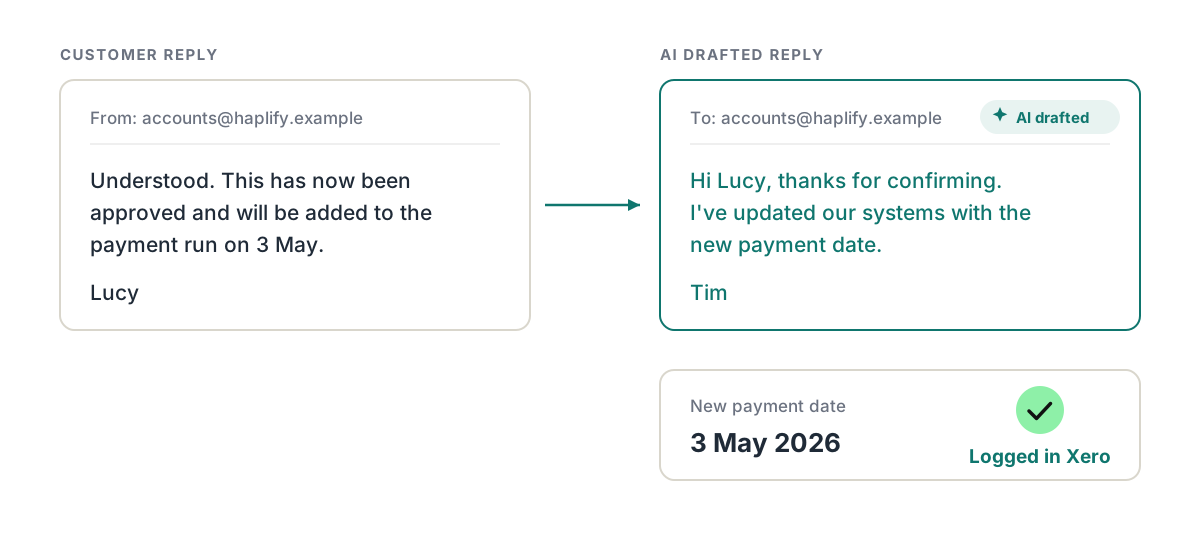
Here’s the flow for one invoice:
- The customer replies to a chaser: “We’ll pay on the 28th.”
- Trove’s AI Reply Agent picks out the date and suggests it as the expected payment date, with a drafted reply.
- You approve it, and Trove writes the payment date back to Business Central through its two-way ERP integration.
- Trove pauses chasing and books a follow-up in case the money doesn’t arrive. If the invoice is paid first, the follow-up is cancelled.
A £200 promise takes the same single approval as a £20,000 one, so the threshold stops mattering. Once you’ve approved the same kind of action a few times, you can switch it to auto-approve.
Trove doesn’t change how Business Central’s forecast works. The worksheet still starts from Due Date, so you’ll need the worksheet step or an extension to move the cash. What you get is a current set of promised dates without anyone retyping them, ready for that step, for your credit control reports and for the CFO’s pack.
Trove connects to Business Central on the Advanced plan at £300 a month. It’s listed on Microsoft Marketplace, where every app is reviewed against Microsoft’s marketplace certification policies before it’s published. For the wider process, see how to chase overdue invoices in Business Central or our Business Central credit control software comparison.
Promises given to the account manager
Some promises never reach finance. If a buyer tells Tim, the account manager, that payment is going out on the 28th, that date needs to reach the same record Priya works from, or the forecast misses it and she chases a customer who has already answered. If your account managers work in HubSpot, here’s how to show them overdue Business Central accounts.
FAQs about payment promises in Business Central
Does Business Central have a promise to pay field?
Yes. The customer ledger entry has a Promised Pay Date field for the date a customer has committed to pay. It holds a date only, so record the amount and contact in a note.
How does the Business Central cash flow forecast work?
You set up a forecast, run Suggest Worksheet Lines to pull in sources such as receivables and sales orders, then register the lines. The cash flow overview lists the sources, and Microsoft’s worksheet code shows that open customer invoices come through on their due dates.
Can I change the expected payment date on a customer invoice in Business Central?
Yes. In Microsoft’s standard base application, Update Document on the posted sales invoice lets you set Promised Pay Date, which is copied to the customer ledger entry. That records the promise but doesn’t move the invoice in the cash flow forecast, so change the Cash Flow Date on the worksheet too.
Does Promised Pay Date stop reminders in Business Central?
Don’t rely on it. Microsoft’s reminder documentation points to the On Hold field for keeping an entry from prompting a reminder, so set On Hold as well and clear it if the promise is missed.
Can Trove capture promised payment dates for Business Central?
Yes, on the Advanced plan. Read how Trove’s AI Reply Agent works: it picks the date out of the customer’s reply, and once approved Trove writes the payment date back through the Business Central integration.
Trove runs a free 30-day trial. You can start a free trial here or book a demo if you’d like to see it with your own Business Central data first.